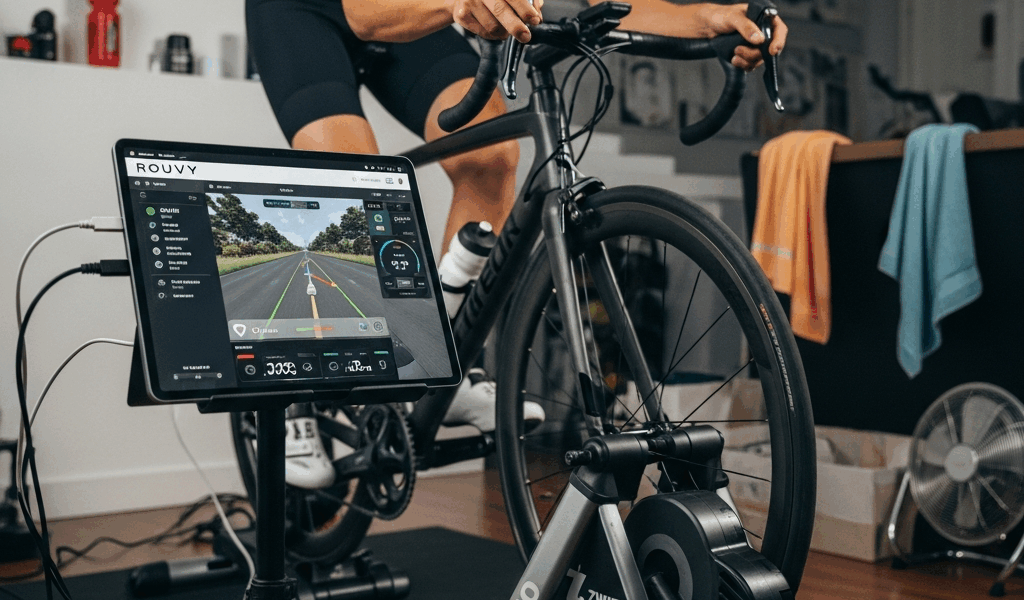
Zwift Hub with Rouvy — Does It Work and How to Set It Up
Using a Zwift Hub with Rouvy has gotten complicated with all the conflicting forum posts and half-answers flying around. As someone who spent a solid month alternating between both platforms on the same trainer, I learned everything there is to know about making this pairing actually work. The short answer: yes, it works. Clean pairing, functional ERG mode, genuinely good experience — with one specific caveat around virtual shifting that’ll catch you off guard if nobody warns you first.
This article includes affiliate links. We may earn a commission at no extra cost to you.
Does the Zwift Hub Work with Rouvy — Short Answer
The Zwift Hub talks over both Bluetooth and ANT+. That’s the whole story, really. Rouvy connects to smart trainers using standard open protocols — Bluetooth Low Energy with the FTMS profile, plus ANT+ FE-C if you’re running a dongle. The Zwift Hub supports both. No proprietary lock, no software wall, nothing stopping you from connecting to whatever app you want.
But what is the Zwift Hub, really? In essence, it’s a rebranded JetBlack trainer with Zwift graphics on the flywheel. The Zwift Hub pushes. But it’s much more than that — it’s a fully capable open-protocol smart trainer pushing 1,800 watts of resistance at ±2.5% accuracy. JetBlack has been building trainers for years. Zwift just slapped their name on it. You own the hardware. You run it however you want.
Rouvy lists the Zwift Hub as compatible — I went through their trainer documentation myself and found zero asterisks, zero warnings. Pairing it follows the exact same process as connecting any other FTMS Bluetooth trainer. That’s what makes the whole situation endearing to us multi-platform riders who don’t want to buy separate hardware for every app.
Step-by-Step — Connecting Zwift Hub to Rouvy
Probably should have opened with this section, honestly. Let’s get into it.
Before You Start
- Update your firmware first. Open Zwift Companion — free, no active subscription needed — find your trainer, and pull any available updates. Don’t make my mistake: I skipped this the first time and chased dropout issues for two sessions before updating fixed everything in one shot.
- Close Zwift completely. Two apps wrestling over the same Bluetooth connection produces exactly one result — nothing works.
- Bike on the trainer, power cable plugged in. The Hub needs that cable for ERG mode and grade simulation. Pedaling alone won’t cut it.
Pairing in the Rouvy App
- Open Rouvy on your device. iOS, Android, Apple TV, Windows — the process is identical across all of them.
- Tap the sensor icon. On mobile it lives in the bottom navigation bar. On Apple TV it’s in the pre-ride setup screen.
- Select Smart Trainer from the device categories.
- Rouvy scans for nearby Bluetooth devices. Your Hub appears as “Zwift Hub” or occasionally “JetBlack” depending on firmware — mine showed up as “Zwift Hub” followed by a four-digit serial suffix.
- Tap it. Rouvy connects and assigns it as your power source and controllable trainer simultaneously. Three green icons confirm it: power, cadence, controllable.
- Back out to the main screen. Done.
The whole process runs under two minutes. Rouvy stores the pairing, so next time the app reconnects automatically — usually within 10 seconds of the trainer powering up.
Calibration — Do It Before Your First Ride
Rouvy doesn’t have a built-in spindown tool for the Zwift Hub. Run calibration through Zwift Companion instead — standard spindown, roughly three minutes, needed every few weeks or after swapping tires. The calibration data lives inside the trainer’s firmware, not tied to any specific app. Calibrate once in Companion and those numbers carry straight into Rouvy without you doing anything extra.
Spin up to around 35 kph, stop pedaling, coast down. Companion walks you through it step by step. After my first proper calibration, Rouvy power numbers landed within 8 watts of my Garmin Rally pedals at threshold efforts — close enough that I stopped worrying about it entirely.
Virtual Gears and ERG Mode on Rouvy
This is where things get interesting — and where most of the forum confusion originates.
The Zwift Hub One — the cassette-free version — runs Zwift’s proprietary virtual shifting system called “Zwift Cog.” Single 14-tooth sprocket, simulated gear changes through software resistance adjustments. Inside Zwift, this feels seamless. Outside Zwift, the situation changes.
Rouvy does not currently support Zwift virtual shifting. The Hub One still connects and functions perfectly as a controllable trainer — ERG mode works, grade simulation works, power reporting works. Press the Zwift shift buttons, though, and nothing happens. Virtual gear changes are handled by Zwift’s own software layer, not by trainer firmware that outside apps can reach.
For most Rouvy use cases, this genuinely doesn’t matter. ERG mode — structured workouts — has the app controlling resistance directly anyway. You don’t shift at all, you just pedal at the instructed power. Simulation mode adjusts resistance based on route gradient and you respond by adjusting cadence and effort. The virtual shifting system was built around Zwift’s specific gamification layer, not around training fundamentals.
If you have the standard Zwift Hub with a real cassette, none of this touches you. Physical gears, normal shifting, works fine on both platforms.
Hub One owners who want manual gear-like control in Rouvy — the practical fix is pairing a cheap Garmin or Wahoo shift button set to Rouvy’s manual resistance control feature. Works well enough. Some riders just use cadence adjustments instead and honestly never miss it.
Ride Quality — Zwift Hub on Rouvy vs on Zwift
Here’s my honest take after a month of swapping between platforms on the same trainer, same bike, same legs.
ERG mode on Rouvy is more aggressive about clamping to target power. Hit a 30-second sprint interval and resistance dials in fast — noticeably faster than Zwift’s ERG, which ramps gentler. Personal preference thing. I prefer Rouvy’s approach for hard sessions because there’s less time spent hunting for the target wattage before the interval ends.
Grade simulation is where the Zwift Hub surprises you on Rouvy. The trainer handles steep grades without complaint — up to its 16% simulation maximum — and transitions feel smooth rather than lurching. Riding a Rouvy augmented reality video of an actual climb while the Hub adjusts resistance in sync with real-world gradient is genuinely immersive. This is Rouvy’s whole identity, and the Hub keeps pace with it.
Zwift on the same trainer benefits from faster ERG recovery — the algorithm is clearly tuned for Zwift’s specific workout formatting — and Hub One virtual shifting integrates tightly with Zwift’s virtual world. Racing and group rides feel the platform advantage. For solo structured training or video route riding, Rouvy on the Zwift Hub isn’t a compromise. It’s just a different experience with different strengths.
One practical note: Rouvy’s video routes demand more processing power than Zwift’s rendered environment. Older tablets and phones may show frame drops in the video — that’s a Rouvy app issue, nothing to do with the trainer.
Common Problems and Fixes
Bluetooth Dropout Mid-Ride
Frustrated by repeated disconnections during an early session, I started troubleshooting with a notepad and found the culprit in about 20 minutes. My iPad was sitting four meters from the trainer with a refrigerator partially blocking the signal path. Moving it to a small mount on my handlebars — roughly 30 centimeters from the trainer — fixed it completely. Bluetooth range and physical obstacles matter more than most people expect. Keep your device within two meters of the trainer if you can manage it.
Also check that Zwift Companion isn’t running silently in the background. It can grab the Bluetooth connection without announcing itself. Force close it before opening Rouvy.
Power Reading Discrepancies
If Rouvy power numbers look significantly off from what you’ve seen in Zwift, check two things first. Calibration — do the spindown in Companion, let the trainer cool to room temperature for five minutes, then run it again. Second, check your weight entry in Rouvy’s profile settings. An incorrect entry there affects how certain metrics display even when raw wattage is accurate.
A consistent 10–15 watt gap between trainer and power pedals is normal given ±2.5% accuracy ratings on both sides. Only chase this down if you’re seeing 30+ watt differences or numbers swinging dramatically between sessions.
Trainer Not Appearing in Rouvy’s Device Scan
Power cycle the trainer — unplug it, count to ten, plug it back in. Force close Rouvy and reopen. Fixes it ninety percent of the time. If the Hub still won’t appear, open your device’s Bluetooth settings and check whether it shows up as a paired peripheral there. If it does, unpair it at the OS level, then let Rouvy discover it fresh on the next scan.
Firmware — Keep It Current
Zwift pushes Hub firmware updates periodically — some specifically address third-party app compatibility and ERG response stability. The October 2023 update improved FTMS stability in a noticeable, not-just-on-paper way. Check Companion every few weeks. Four minutes, matters more than you’d think.
The Zwift Hub is a legitimate open-protocol trainer that holds up well on Rouvy. Setup is straightforward, ERG mode is solid, grade simulation is smooth. The only real limitation — virtual shifting on the Hub One — has easy enough workarounds for most training situations. Firmware updated, paired over Bluetooth, and you’re riding. No hardware barrier in the way.
Hardware compatibility is only one part of the decision. Our 2026 ROUVY vs Zwift comparison covers pricing, routes, racing, workouts, and the implications of Zwift’s acquisition of ROUVY.

Stay in the loop
Get the latest cycling gear galaxy updates delivered to your inbox.