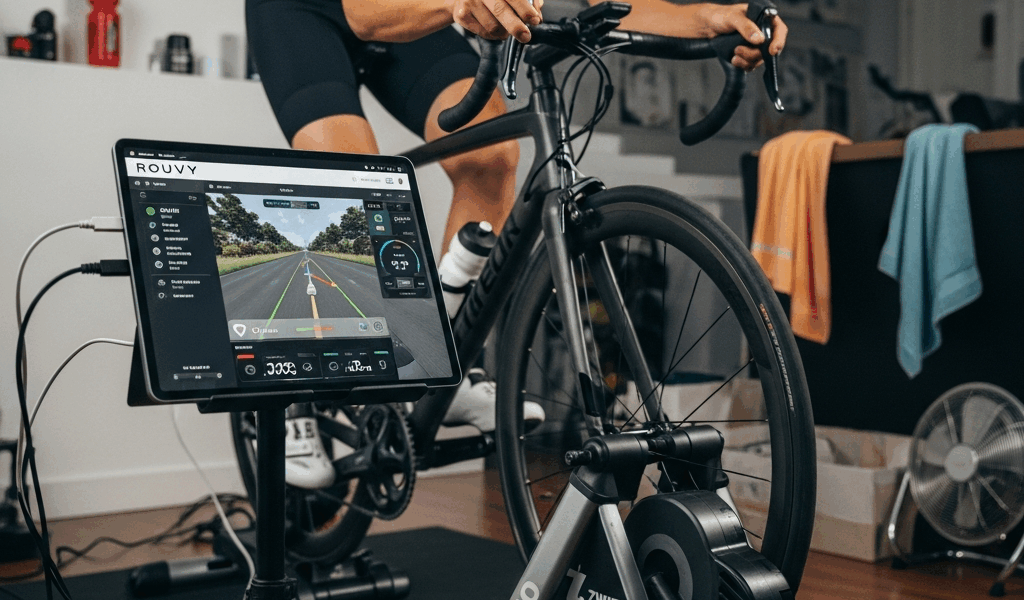
Zwift Hub with Rouvy — Does It Work and How to Set It Up
Can you use Zwift Hub with Rouvy? Yes. Full stop. The Zwift Hub is not locked to Zwift’s platform despite what the branding strongly implies, and I spent a solid month riding Rouvy on mine before writing this. The short version is that it pairs cleanly, ERG mode works, and the experience is genuinely good — with a few specific caveats around virtual shifting that are worth knowing before you start. This guide walks through the actual setup process, the settings that matter, and the real differences you’ll notice once you’re riding.
Does the Zwift Hub Work with Rouvy — Short Answer
The Zwift Hub communicates over both Bluetooth and ANT+. That’s the key fact. Rouvy, like most serious training apps, connects to smart trainers using standard open protocols — specifically Bluetooth Low Energy with the FTMS (Fitness Machine Service) profile, plus ANT+ FE-C if you’re using a dongle. The Zwift Hub supports both. Zwift does not bake any proprietary lock into the hardware that prevents other apps from connecting.
This surprises a lot of people. The name “Zwift Hub” sounds like it should be Zwift-only, the way an Apple Watch integrates best with an iPhone. It isn’t. The trainer was manufactured by JetBlack — a well-established trainer company — and rebranded. Underneath the Zwift graphics on the flywheel, it’s a capable open-protocol smart trainer with 1,800 watts of resistance and a stated accuracy of ±2.5%. You own it. You can use it with whatever software you want.
Rouvy specifically lists the Zwift Hub as a compatible trainer. I confirmed this myself by going into Rouvy’s trainer compatibility documentation, and the Hub shows up without any asterisks or warnings. Pairing it follows the same process as pairing any FTMS Bluetooth trainer.
Step-by-Step — Connecting Zwift Hub to Rouvy
Probably should have opened with this section, honestly. Let’s get into the actual setup.
Before You Start
- Make sure your Zwift Hub firmware is up to date. Open the Zwift Companion app (free, doesn’t require a Zwift subscription), go to your trainer, and check for firmware updates. I made the mistake of skipping this the first time and had dropout issues that disappeared completely after updating.
- Close Zwift if it’s running. Two apps fighting over the same Bluetooth connection is a recipe for nothing working.
- Have your bike set up on the trainer and the trainer plugged into power. The Hub requires the power cable connected — it doesn’t run from the bike’s motion alone when you need ERG mode or grade simulation.
Pairing in the Rouvy App
- Open Rouvy on your device — iOS, Android, Apple TV, or Windows all work. The process is identical across platforms.
- Tap the sensor/device icon. On mobile it’s in the bottom navigation bar. On Apple TV it’s in the pre-ride setup screen.
- Select Smart Trainer from the device categories.
- Rouvy will scan for available Bluetooth devices. Your Zwift Hub will appear as “Zwift Hub” or sometimes “JetBlack” depending on firmware version. Mine showed up as “Zwift Hub [four-digit serial suffix]”.
- Tap it. Rouvy will connect and automatically assign it as both your power source and controllable trainer. You’ll see three green icons: power, cadence, and controllable.
- Back out to the main screen. You’re done.
The entire process takes under two minutes. Rouvy remembers the pairing so next time you open the app it reconnects automatically, usually within 10 seconds of the trainer powering up.
Calibration — Do It Before Your First Ride
Rouvy doesn’t have a built-in spindown calibration tool for the Zwift Hub. Do your calibration in the Zwift Companion app instead — it’s a standard spindown, takes about three minutes, and you only need to do it once every few weeks or after changing tires. The calibration data lives in the trainer’s firmware, not in any specific app, so calibrating via Companion carries over to Rouvy sessions perfectly.
Spin up to around 35 kph, stop pedaling, and let the wheel coast down. The Companion app walks you through it. After my first proper calibration, my power numbers in Rouvy were within 8 watts of my Garmin Rally pedals at threshold efforts. Close enough for training purposes.
Virtual Gears and ERG Mode on Rouvy
This is where things get interesting, and where most forum confusion comes from.
The Zwift Hub One — the cassette-free version — uses Zwift’s proprietary virtual shifting system called “Zwift Cog.” It has a single 14-tooth sprocket and simulates gear changes through software resistance adjustments. This system works natively inside Zwift. Outside of Zwift, it’s a different story.
Rouvy does not currently support Zwift virtual shifting. The Hub One will still connect and function as a controllable trainer — ERG mode works, grade simulation works, power reporting works. But when you press the Zwift-branded shift buttons, nothing happens. The virtual gear changes are handled by Zwift’s software, not by the trainer’s firmware in a way other apps can access.
For most Rouvy use cases, this doesn’t matter. Here’s why: in ERG mode (structured workouts), the app controls resistance directly anyway. You don’t shift — you just pedal. In simulation mode (riding video routes), Rouvy adjusts resistance based on gradient, and you respond by changing your actual cadence and effort. The virtual shifting system in Zwift was largely designed to handle the gamification layer of that specific platform.
If you have the standard Zwift Hub — the one with a real cassette — none of this applies to you. You shift normally, using your physical gears. Everything works as expected on both platforms.
If you have the Hub One and want gear-like control in Rouvy, the practical workaround is simple: use ERG mode for workouts, and for free rides adjust your cadence to manage effort. Some riders pair cheap Garmin or Wahoo shift buttons to control Rouvy’s resistance manually via the app’s resistance control feature. It works.
Ride Quality — Zwift Hub on Rouvy vs on Zwift
Here’s my honest take after a month of alternating between the two platforms on the same trainer.
ERG mode on Rouvy feels slightly more aggressive in how it clamps to target power. Hit a 30-second sprint interval and Rouvy dials in resistance fast — sometimes faster than Zwift’s ERG, which has a gentler ramp. Whether you prefer this is entirely personal. I actually like Rouvy’s approach for harder sessions because there’s less “finding the target” time.
Grade simulation — riding Rouvy’s AR video routes with real-world gradients — is where the Zwift Hub surprises you. The trainer handles steep grades well, up to its 16% maximum simulation grade, and the transitions feel smooth. Riding a Rouvy video of a real climb with the Hub adjusting resistance in sync with the actual road is genuinely immersive. This is Rouvy’s core strength and the Hub keeps up with it without complaint.
The Zwift experience on the same trainer has faster ERG recovery (the algorithm is tuned for Zwift’s workout formats) and the virtual shifting on Hub One integrates tightly with Zwift’s virtual world. If you’re doing Zwift racing or group rides, you feel the platform advantage. For solo structured training or route riding, Rouvy on the Zwift Hub is not a compromise. It’s just a different experience.
One thing worth noting: Rouvy’s video routes require more processing power than Zwift’s rendered world. On older tablets or phones you might see frame drops in the video. This is a Rouvy app performance issue, not anything to do with the trainer itself.
Common Problems and Fixes
Bluetooth Dropout Mid-Ride
Frustrated by repeated disconnections on an early session, I started troubleshooting methodically and found the issue within 20 minutes. The culprit was my iPad sitting about four meters from the trainer with a refrigerator partially in the signal path. Moving the iPad to a small shelf on my handlebar mount — about 30 centimeters from the trainer — solved it entirely. Bluetooth range and obstacles matter more than people expect. Keep your device within two meters of the trainer if you can.
Also check that no other app on your phone or tablet is connected to the Hub. Zwift Companion in the background can grab the Bluetooth connection silently. Force close it before opening Rouvy.
Power Reading Discrepancies
If your Rouvy power numbers look significantly different from what you’ve seen in Zwift, check two things first. One: did you calibrate recently? Do the spindown in Companion, wait five minutes for the trainer to cool to room temperature, then do it again. Two: check your weight entry in Rouvy’s profile settings. Rouvy uses your rider weight for some calculations, and an incorrect entry can affect how metrics display even when raw wattage is correct.
A consistent 10–15 watt discrepancy between a trainer and power pedals is normal and expected given ±2.5% accuracy ratings on both sides. Only chase this rabbit if you see 30+ watt differences or numbers that change dramatically between sessions.
Trainer Not Appearing in Rouvy’s Device Scan
Power cycle the trainer — unplug it, wait 10 seconds, plug it back in. Then force close Rouvy and reopen it. In 90% of cases this fixes the issue. If the Hub still doesn’t appear, open Bluetooth settings on your device and check whether it shows up as a paired peripheral there. If it does, unpair it at the OS level, then let Rouvy find it fresh.
Firmware — Keep It Current
Zwift pushes Hub firmware updates periodically and some of them specifically address third-party app compatibility and ERG response. The October 2023 firmware update, for example, improved FTMS stability noticeably. Check Companion every few weeks. It takes four minutes and it matters.
The bottom line: the Zwift Hub is a legitimate open-protocol trainer that works well with Rouvy. The setup is straightforward, ERG mode is solid, grade simulation is smooth, and the only real limitation — virtual shifting on the Hub One — is easy to work around for most training scenarios. If you bought a Zwift Hub and want to explore Rouvy, there’s no hardware barrier stopping you. Get the firmware updated, pair it over Bluetooth, and start riding.

Stay in the loop
Get the latest cycling gear galaxy updates delivered to your inbox.